Guide for property owners

How to List Your Property on STAYO

A simple, step-by-step guide to creating your host account, adding your property and publishing your first listing.

Create your free host account, add the details guests need, then send your listing to STAYO for review. You can use a computer or phone; a computer is easier for uploading photos.

Allow about 20–30 minutes to complete the steps. You can save a draft and finish later.

On this page

Before you start

  • An email address: A six-digit code will be sent by email to confirm your account.
  • Your property address: Have the street, district and city ready.
  • At least five good photos: Use bright, clear photos of every room. JPEG, PNG or WebP; up to 10 MB each.
  • Your nightly price in SAR: Decide how much you want to charge for one night.
  • Your house rules: For example, no smoking, no parties or quiet hours.
  • Check-in and check-out times: For example, check-in after 3:00 PM and check-out by 12:00 PM.
  • An ownership or verification document (optional): A title deed, utility bill or rental agreement. PDF, JPG, PNG or DOC; up to 10 MB.

What you will do

  • Part 1 · Create your account: Register for a free STAYO account and confirm your email.
  • Part 2 · Add your property: Complete eight short steps: home type, location, details, amenities, rules, photos, price and final details.
  • Part 3 · Publish and approval: Submit your listing for the STAYO team to review.

Part 1 · Create your account

You need a free STAYO account to list your property.

1.1 · Open the STAYO website

  1. Go to www.stayo.net in your web browser.
  2. Click Log in at the top right of the page.
  3. Shortcut: enter www.stayo.net/host to open the owners’ area directly.
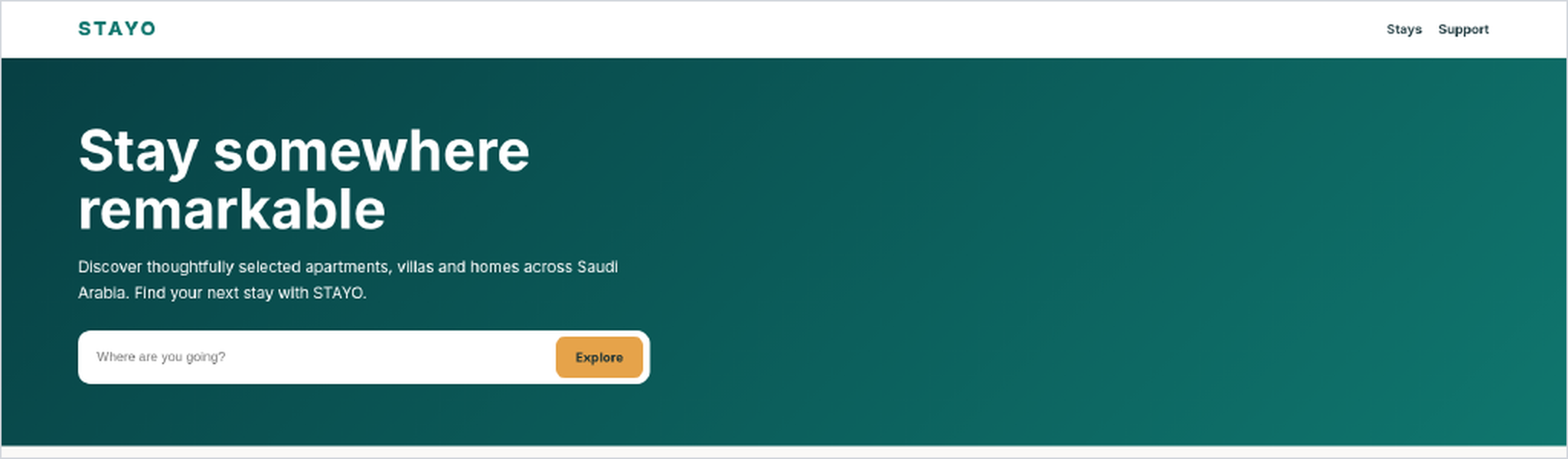
STAYO home page with the Log in control at the top right.
The STAYO home page.

1.2 · Open the host area

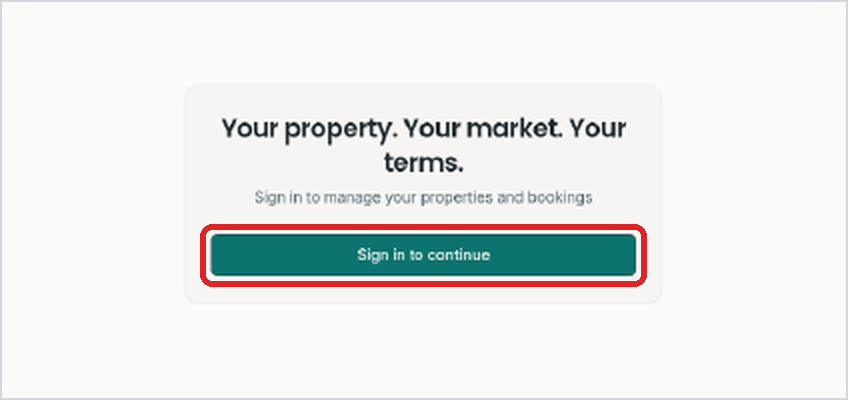
  1. On the host page, click Sign in to continue.
STAYO host page showing the Sign in to continue action.
The host page at stayo.net/host.

1.3 · Choose Register

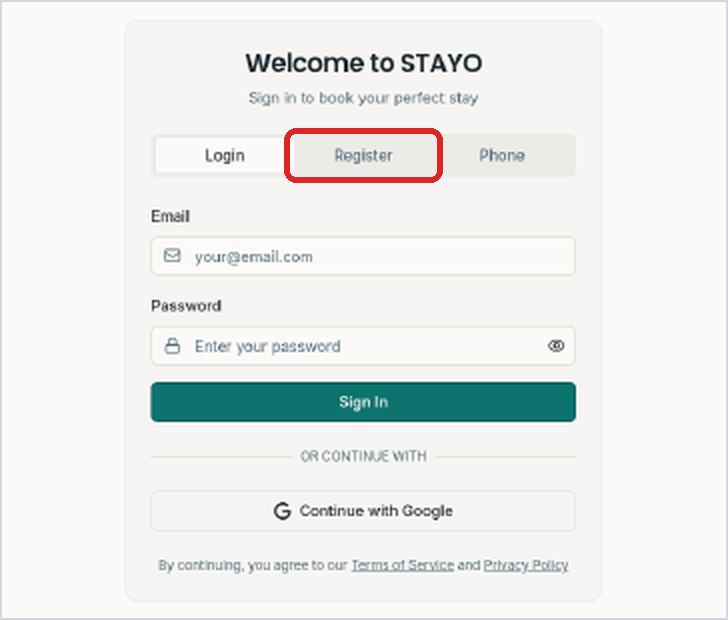
  1. You will see three tabs: Login, Register and Phone.
  2. If you are a new owner, click Register.
  3. If you already have an account, use Login and continue to Part 2.
Sign-in page with the Register tab selected.
The sign-in page. Click the Register tab.

1.4 · Fill in your details

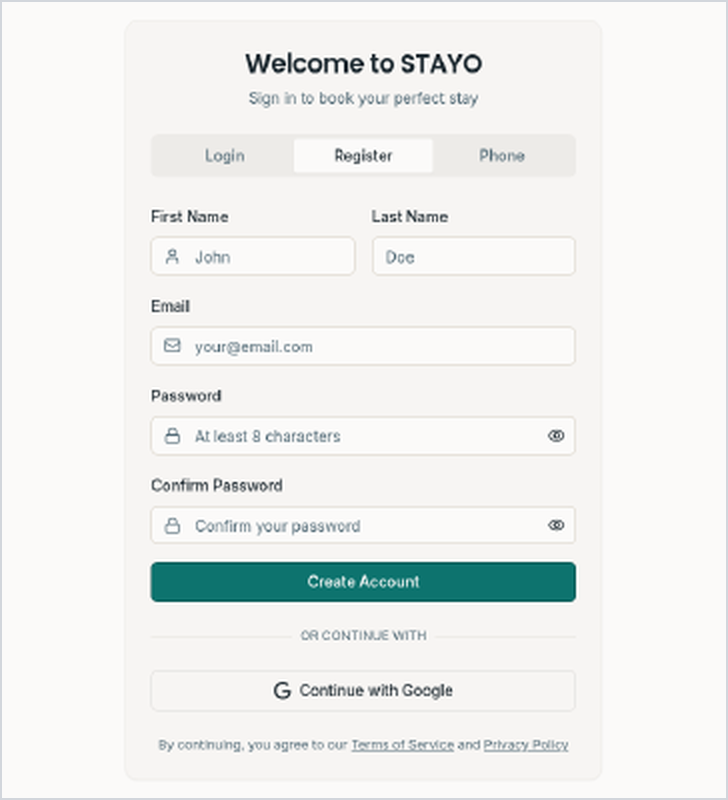
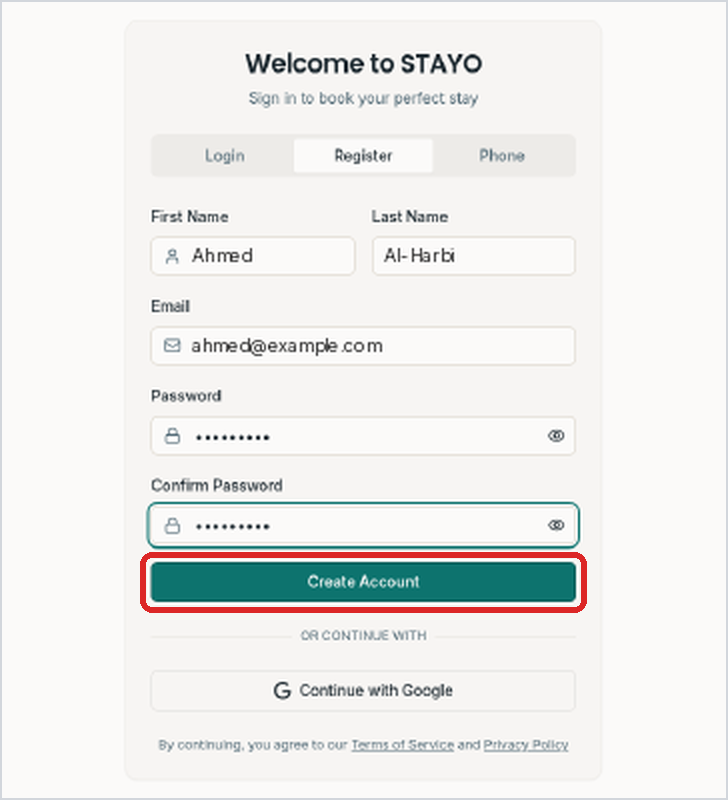
  1. Enter your first name, last name and email address.
  2. Choose a password with at least eight characters and enter it again in Confirm Password.
  3. Click Create Account.
Registration form before the account details are entered.
The empty registration form.
Completed registration form with Create Account action.
Enter your details, then click Create Account.

1.5 · Confirm your email

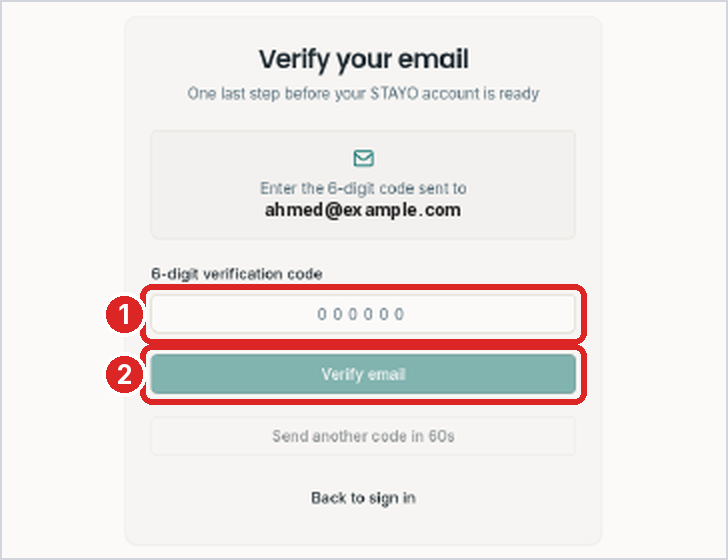
  1. Open your email and find the message from STAYO containing a six-digit code.
  2. Enter the code in the box (1), then click Verify email (2).
Email verification screen with a code field and Verify email button.
The Verify your email screen.

1.6 · Your account is ready

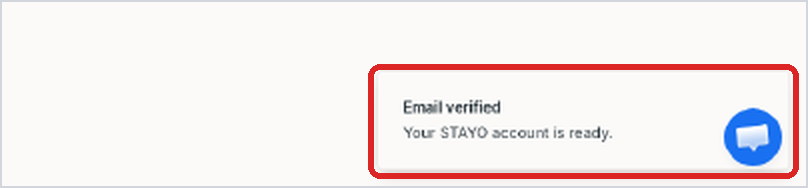
  1. You will see the message “Email verified – Your STAYO account is ready.”
  2. Wait a moment while STAYO opens your Host Dashboard.
Confirmation toast stating that the STAYO account is ready.
The confirmation message appears at the bottom right.

Start · Your Host Dashboard

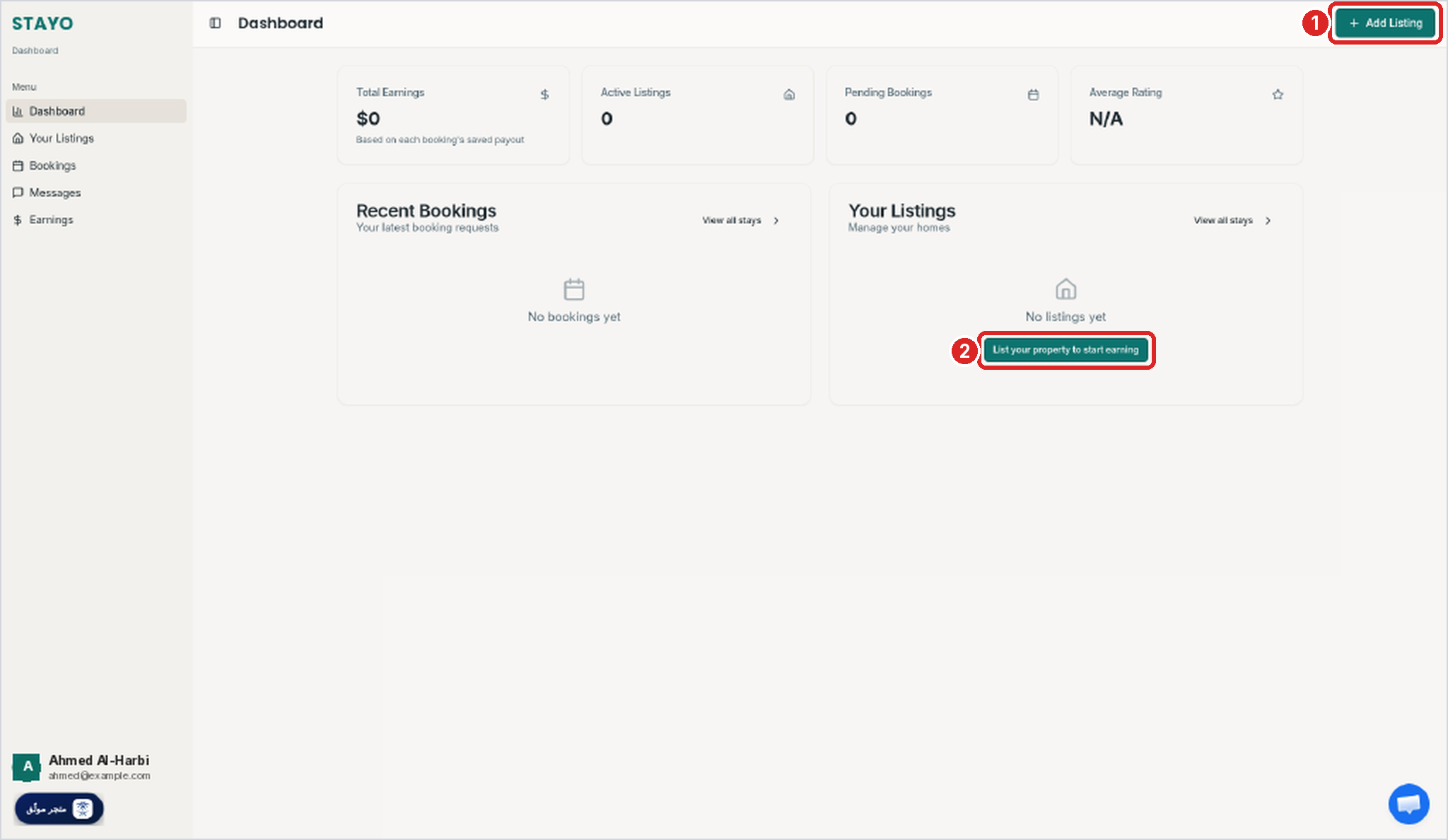
  1. Click Add Listing at the top right (1), or List your property to start earning (2).
  2. The menu on the left contains Your Listings, Bookings, Messages and Earnings.
Host Dashboard with Add Listing and the left navigation menu.
The Host Dashboard.

Part 2 · Add your property

Complete the eight listing steps. The progress bar at the top shows which step you are on.
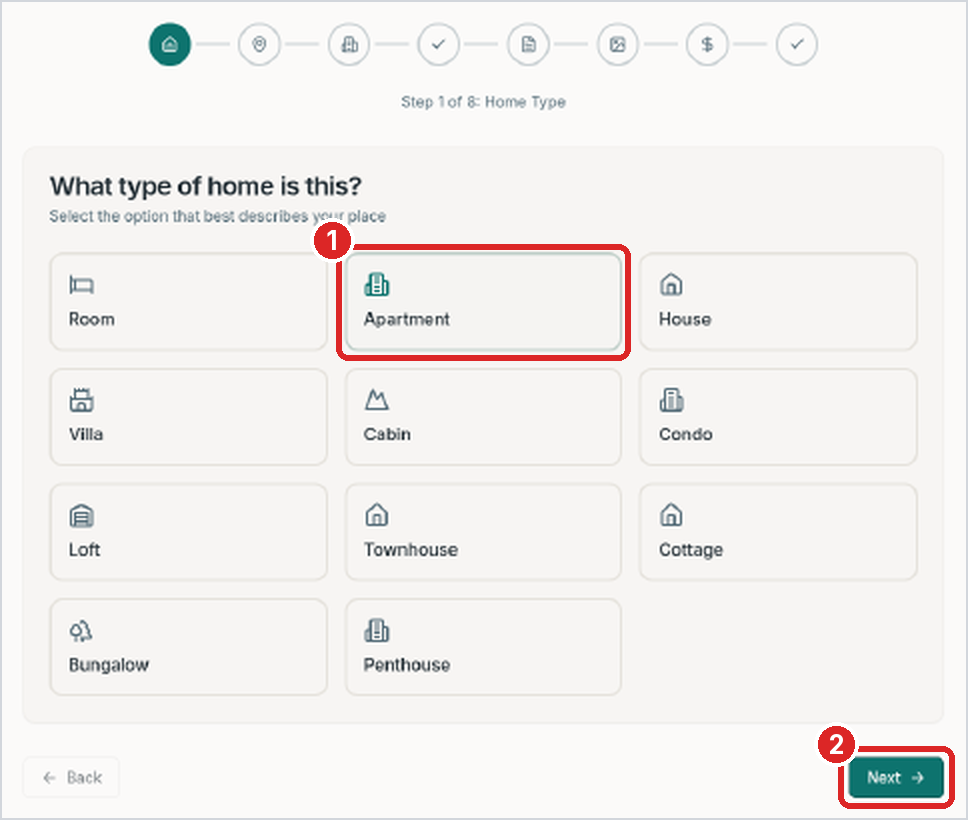
Step 1 of 8 · Home type

  1. Choose the type of home, for example Apartment, Villa or House (1).
  2. Click Next (2).
Listing form with Apartment selected and the Next button.
Apartment selected. Then click Next.

Step 2 of 8 · Location

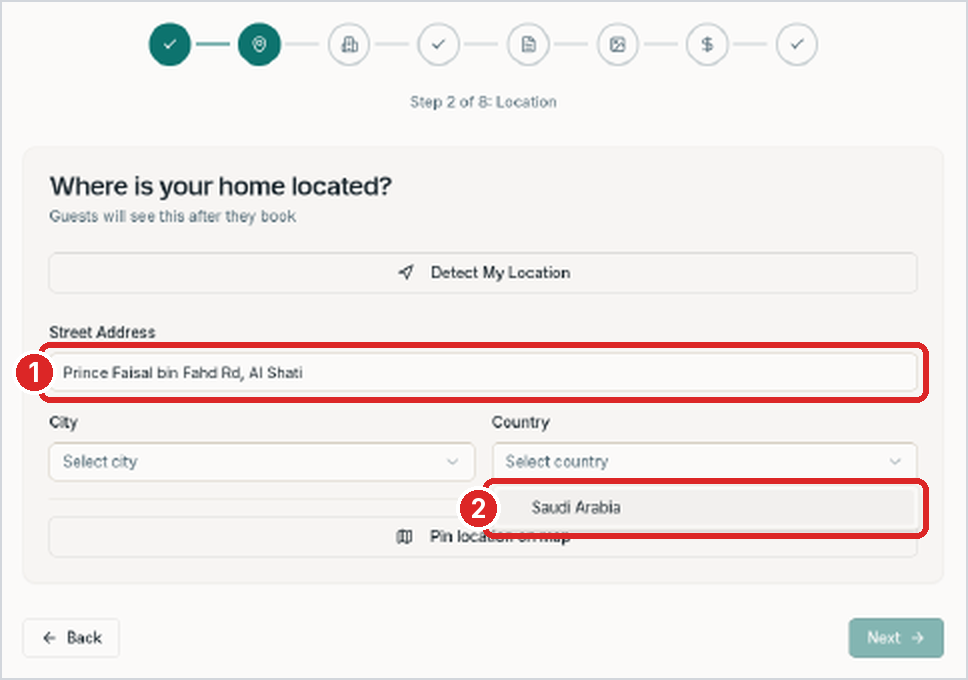
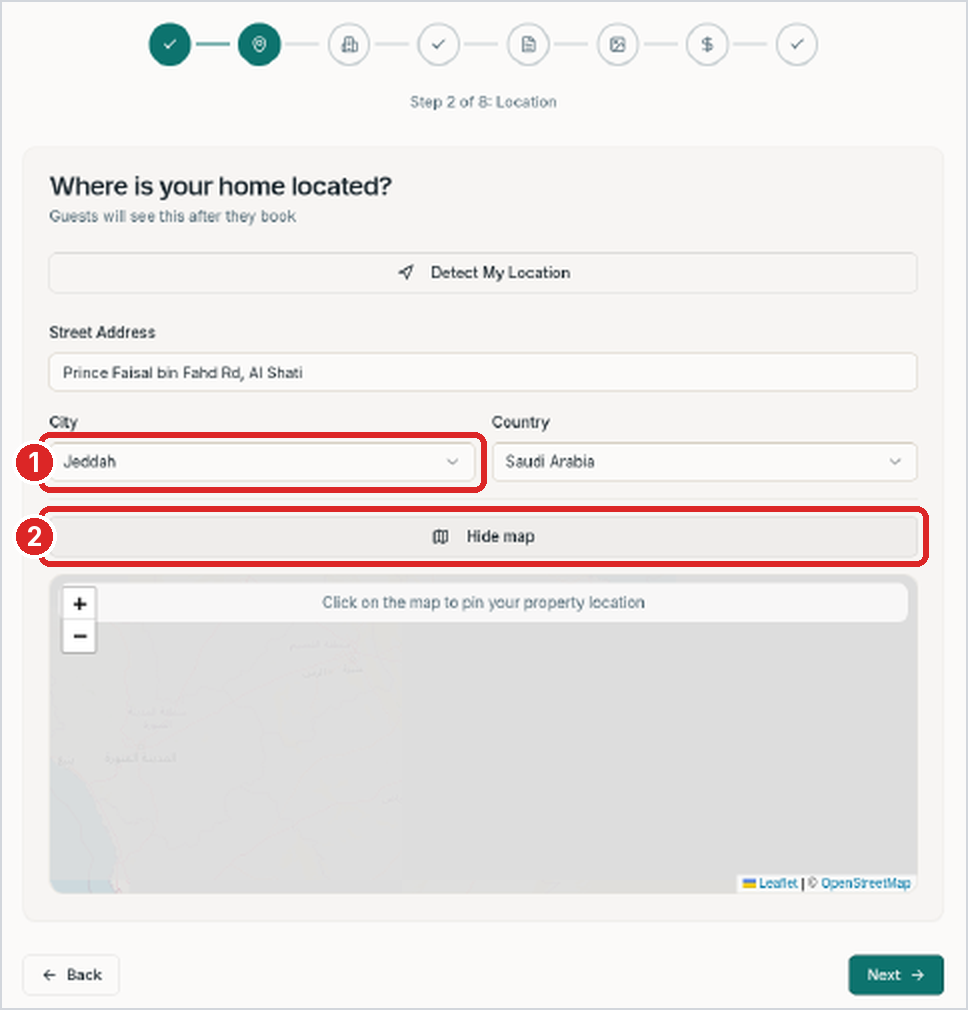
  1. Enter your Street Address (1), or click Detect My Location if you are at the property.
  2. Choose your Country: Saudi Arabia (2).
  3. Choose your City, for example Jeddah (1).
  4. Optional: click Pin location on map (2). Zoom in (+) to your city, then click your building to place the pin.
  5. Click Next.
Location form with street address and Saudi Arabia selected.
Enter the address and choose Saudi Arabia.
City selected with the map open for placing a location pin.
Select a city and, optionally, pin the property on the map.

Step 3 of 8 · Describe your place

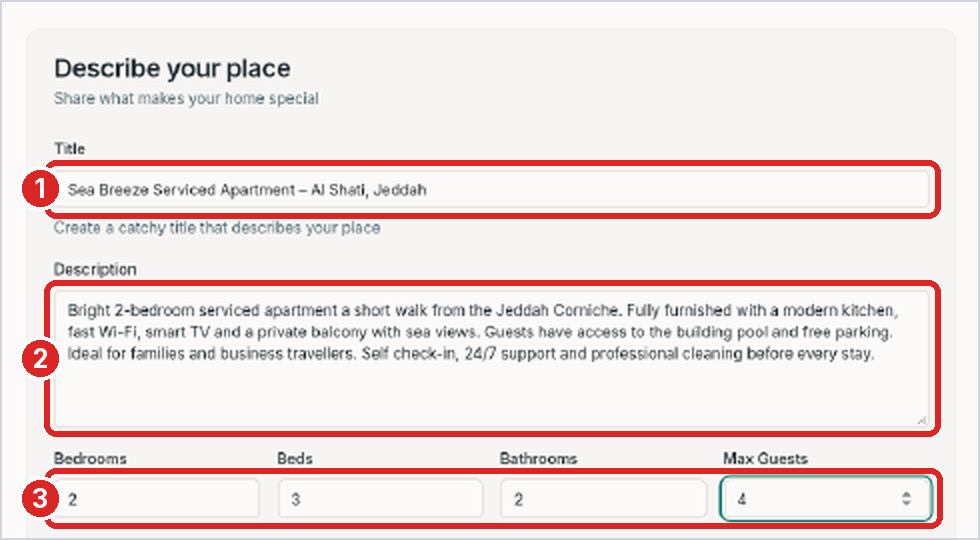
  1. Write a short, clear Title (1). Example: “Sea Breeze Apartment – Al Shati, Jeddah”.
  2. Write a Description (2) covering the rooms, nearby places and what makes the property special.
  3. Enter the number of Bedrooms, Beds, Bathrooms and Max Guests (3).
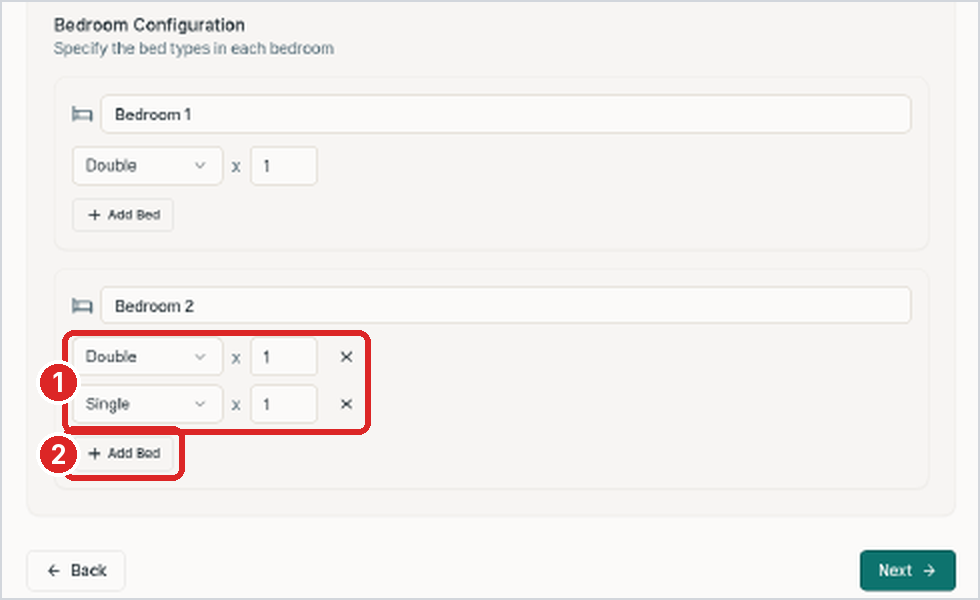
  4. Under Bedroom Configuration, choose the bed type in each bedroom, such as Double or Single (1).
  5. If a room has more than one bed, click + Add Bed (2). Then click Next.
Property details form with example bedroom, bed, bathroom and guest counts.
Example: 2 bedrooms, 3 beds, 2 bathrooms and 4 guests.
Bedroom configuration showing one double bed and one single bed in Bedroom 2.
Bedroom 2 has one double bed and one single bed.

Step 4 of 8 · Amenities

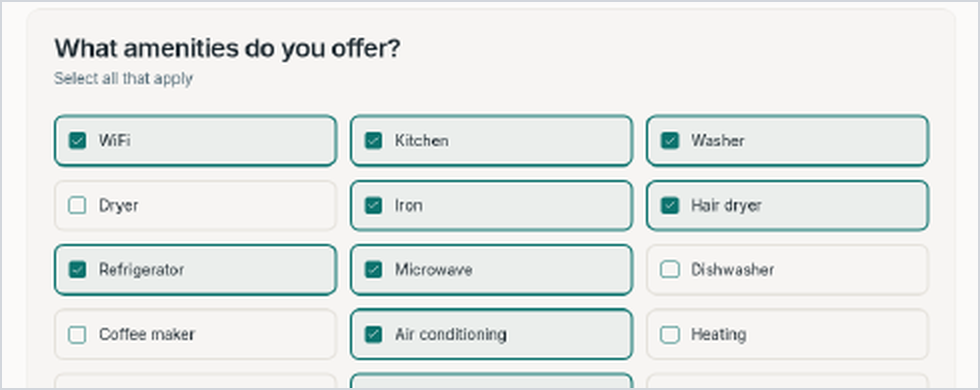
  1. Select everything your property has. Examples include WiFi, Kitchen, Washer, TV, Air conditioning, Pool, Balcony, Free parking, Elevator, Workspace, Hair dryer, Iron and Ocean view.
  2. Scroll down to see the full list, then click Next.
Amenities checklist with selected items indicated by green check marks.
Selected amenities show a green check mark.

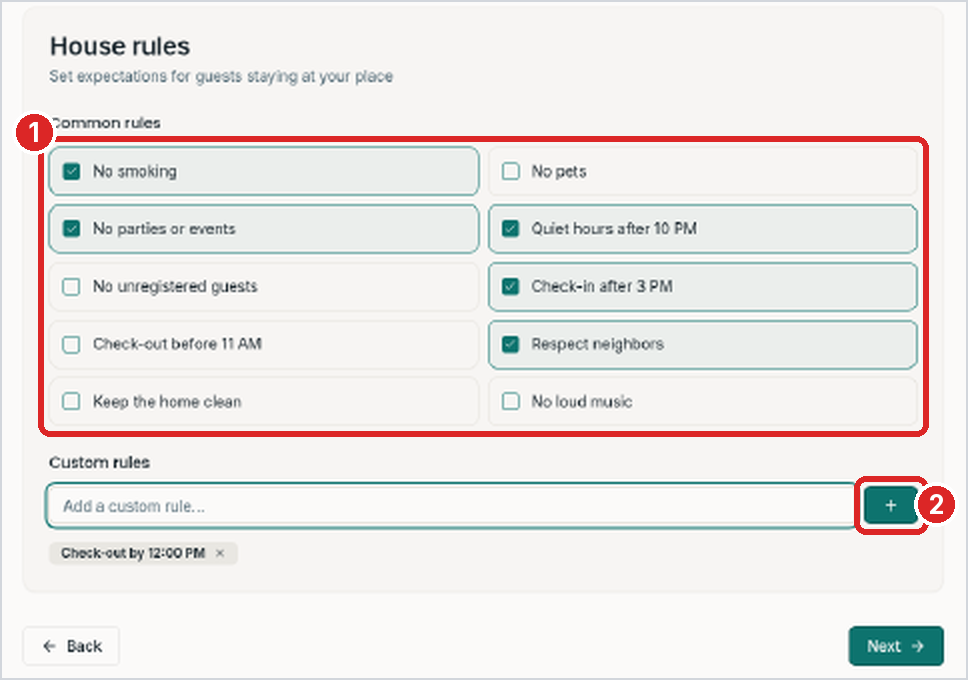
Step 5 of 8 · House rules

  1. Select your rules, for example No smoking, No parties or events, and Check-in after 3 PM (1).
  2. To add a rule, enter it under Custom rules and click + (2). Then click Next.
House rules checklist with a custom rule being added.
Example custom rule: Check-out by 12:00 PM.

Step 6 of 8 · Photos

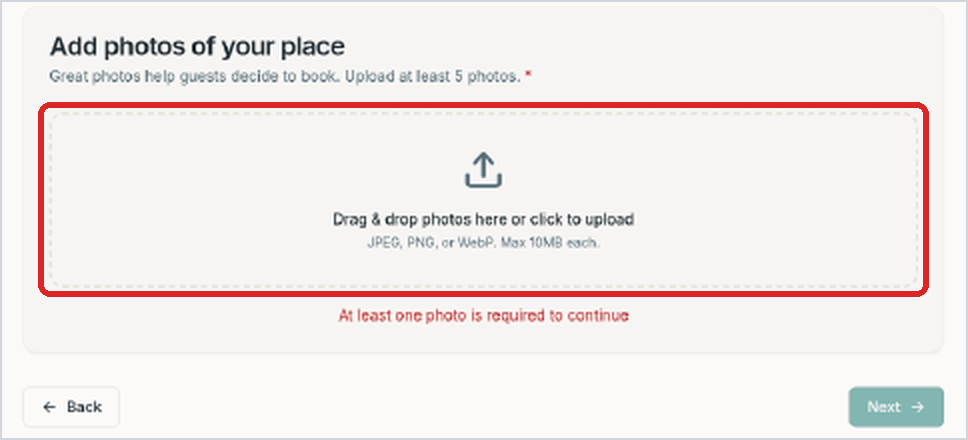
  1. Click the upload box, or drag your photos into it.
  2. Upload at least five photos.
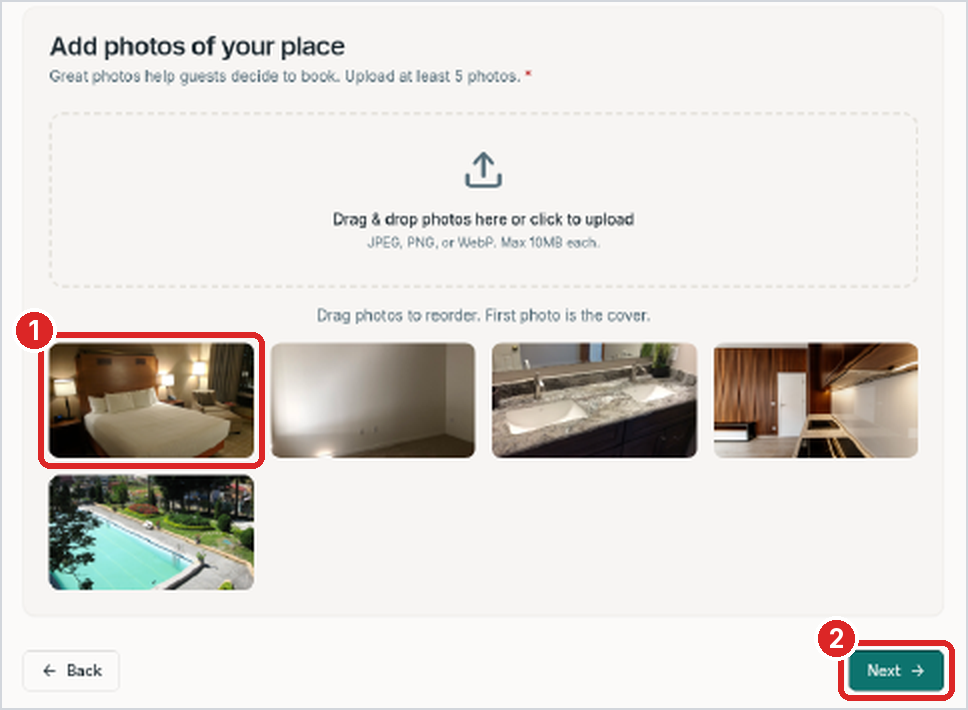
  3. The first photo is your cover photo (1). Drag photos to change the order, then click Next (2).
Empty photo upload area ready for property photos.
The empty photo upload box.
Five uploaded property photos with the bedroom cover photo first.
Five photos uploaded. The bedroom photo is the cover.

Step 7 of 8 · Pricing

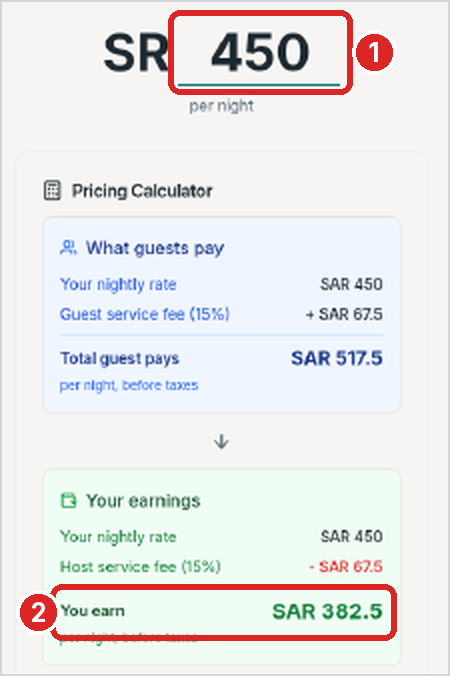
  1. Enter your price for one night in Saudi Riyals (1). The guide’s example uses SAR 450.
  2. The calculator shows what the guest pays and what you earn (2), then click Next.
Pricing calculator showing the guide's illustrative SAR 450 example.
The guide’s historical example: SAR 450 nightly price and an illustrative fee breakdown.

Step 8 of 8 · Final details

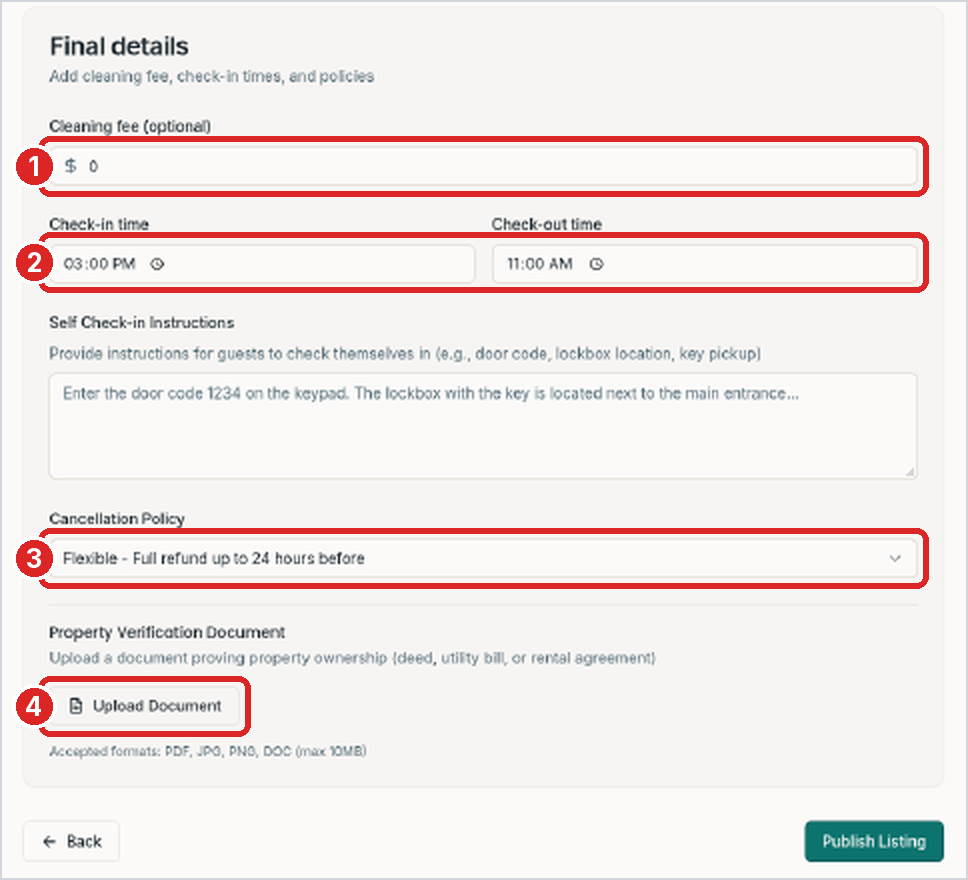
  1. Set a Cleaning fee (optional) and your Check-in / Check-out times (1–2).
  2. Choose a Cancellation Policy (3), for example “Flexible – full refund up to 24 hours before”.
  3. Optional: click Upload Document (4) to add proof of ownership, such as a deed, utility bill or rental agreement.
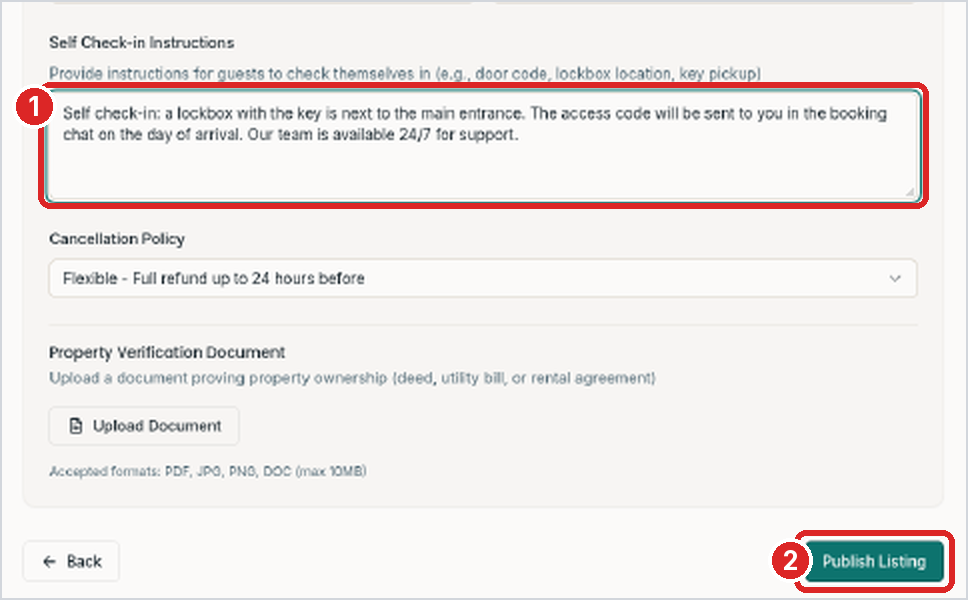
  4. Write Self Check-in Instructions (1): explain where the key or lockbox is and how guests get the code.
  5. Review everything, then click Publish Listing (2).
Final details form showing fees, times, cancellation policy and document upload.
The Final details page.
Self check-in instruction field completed above the Publish Listing button.
Add instructions, review your listing, then click Publish Listing.

Part 3 · Publish and approval

Your listing is sent to the STAYO team for review. Review and approval timing can vary; the guide’s screen examples are illustrative and do not promise a decision time.
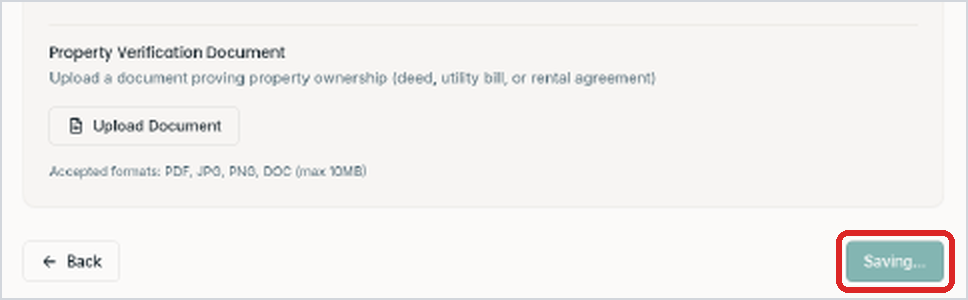

3.1 · Click once and wait

  1. The button changes to “Saving…” while your listing uploads.
  2. The original guide describes the upload as taking about 30–40 seconds; actual processing time may vary.
Publish action in progress with the button showing Saving.
The button shows Saving while the listing uploads.

3.2 · Listing published

  1. You will see the message “Listing published – Your listing is now pending review.”
Success notification stating that the listing is pending review.
The listing-published success message.

3.3 · Wait for approval

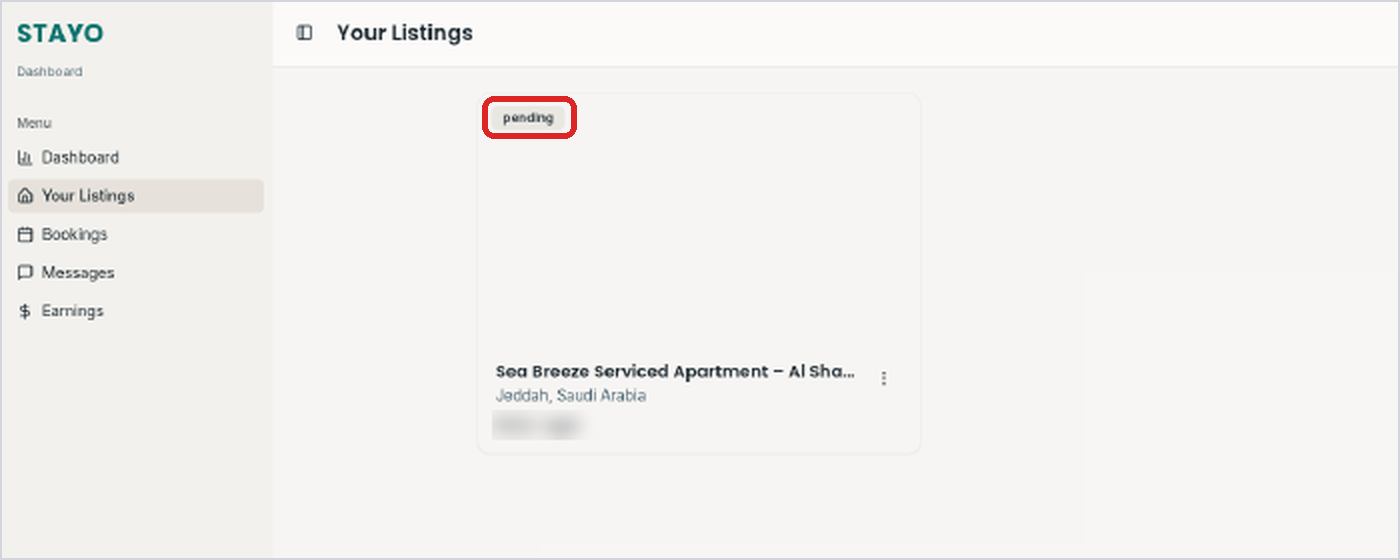
  1. Open Your Listings in the left menu. Your property appears with a “pending” label.
  2. The STAYO team checks your listing. Once approved, guests can find and book it.
Your Listings view showing a new property with a pending label.
Your new listing with the pending label.

Tips for a great listing

  • Great photos get more bookings. Use bright, clear, landscape photos. Show every room, the bathroom, kitchen and view.
  • Pick a strong cover photo. Make your best room or view the first photo.
  • Write a clear title. Name the type of home and area. Example: “Family Villa with Pool – Al Malqa, Riyadh”.
  • Describe the area. Mention nearby places such as the Corniche, malls, the Haram, airport or main roads.
  • Set a fair price. Look at similar places nearby. You can change your price at any time.
  • Keep details correct. Beds, guest capacity and amenities should match the real property.
  • Make check-in easy. Give clear self check-in instructions and accurate check-in and check-out times.
  • Reply quickly. Check Messages and Bookings often. Fast replies build trust with guests.
  • Keep it clean. A clean home brings good reviews and more guests.

Need help?

The STAYO team is happy to help with your listing.
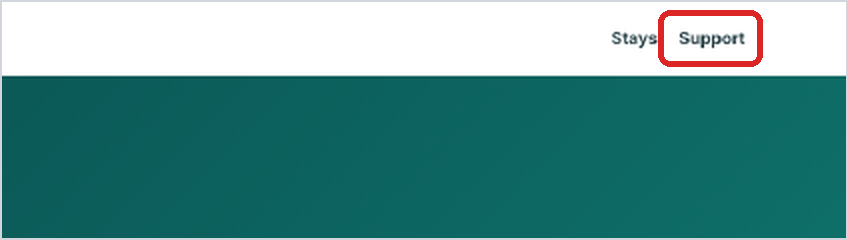
  1. Go to www.stayo.net.
  2. Click Support at the top right of the page.
  3. Tell us your name, your listing title and what you need help with.
STAYO website with the Support link at the top right.
The Support link on the STAYO website.

Visit Support

Thank you for choosing STAYO. We look forward to welcoming guests to your property.